


GMC Infotainment Guide: Google Built-In, myGMC App & CarPlay
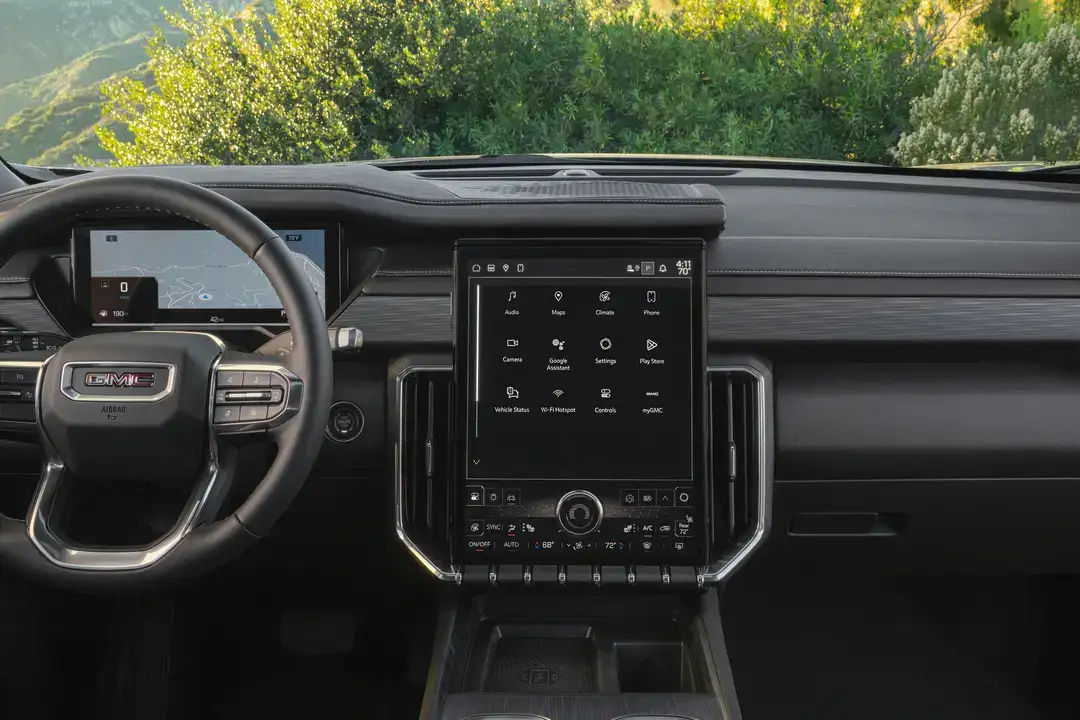
Modern GMC trucks and SUVs come with a connected infotainment system that goes well beyond a radio and a screen. The current GMC lineup integrates Google Built-In software for maps, voice control, and downloadable apps directly into the vehicle, alongside Apple CarPlay and Android Auto for phone mirroring, and the myGMC smartphone app for remote control of vehicle functions. Understanding how each layer works, and which features require which subscription or device, helps you get the most out of the system on day one rather than months into ownership. This guide covers all three components for 2026 and 2027 GMC models.
The GMC Infotainment System at a Glance (2026-2027)
GMC’s current infotainment system runs on a touchscreen whose size depends on the model and the model year, and the difference is larger than most buyers expect: the redesigned 2027 Sierra 1500 carries a 16.3-inch display even on the Pro trim, while the 2026 Canyon uses an 11.3-inch screen. The system uses a capacitive display similar to a tablet, supports pinch-to-zoom on map views, and processes voice commands through the vehicle’s microphone array and, on Google built-in equipped models, Google Assistant.
The display responds quickly by current automotive standards, with over-the-air software updates delivered through the vehicle’s connected services link when an active subscription is present. This means the system you receive at delivery is not necessarily the final version: GMC can push improvements, bug fixes, and new features to the vehicle without a dealer visit.
| Model | Model Year | Touchscreen | Google Built-In | CarPlay / Android Auto |
|---|---|---|---|---|
| Sierra 1500 | 2027 | 16.3-inch, including the Pro trim | Yes | Yes, in a split-screen window |
| Sierra HD | 2026 | 13.4-inch | Yes | Wireless, standard from Pro |
| Terrain | 2027 | 15-inch | Yes | Yes |
| Acadia | 2027 | 15-inch | Yes, standard | Yes |
| Yukon / Yukon XL | 2027 | 16.8-inch | Yes | Yes |
| Canyon | 2026 | 11.3-inch | Yes | Wireless, standard |
| Sierra EV | 2027 | 16.8-inch, plus an 11-inch Driver Information Center | Yes | Not available |
| Screen sizes as published by GMC and tied to the model year shown. Several models changed size between 2026 and 2027, so confirm the figure on the window sticker for the specific vehicle. | ||||
Google Built-In: Maps, Assistant & Downloadable Apps
Google Built-In means the vehicle runs a version of Android Automotive OS directly on its processor, not through your phone. This is a critical distinction from Android Auto, which mirrors your phone’s interface. With Google Built-In, the maps, voice assistant, and core apps operate independently of whether your phone is connected or even in the vehicle.
Google Maps Built Into the Vehicle
Google Maps is embedded in the infotainment system and updates its maps data through the vehicle’s connected services link. The navigation operates without a phone connection and does not consume your phone’s data. The maps show real-time traffic, construction updates, and routing alternatives, and the system integrates with the Sierra’s trip computer to factor in fuel range when calculating routes. For EV models, Google Maps is aware of the battery’s current state of charge and can suggest charging stops automatically.
GMC states that Google Maps and Google Assistant require a paid service plan or trial. Without an active plan the vehicle keeps its own functions and audio, but live traffic, automatic rerouting, assistant queries and app downloads all depend on that connection.
Google Assistant Voice Control
Say “Hey Google” to activate voice control for navigation, media, phone calls, and vehicle settings. The Google Assistant in GMC vehicles can respond to natural language commands rather than requiring specific syntax. You can say “take me to the nearest GMC dealer” or “call home on Bluetooth” without navigating to specific screens. The assistant also controls some vehicle functions including climate settings on compatible trims.
Downloadable Apps Through the Google Play Store
Apps available for in-vehicle download are mainly audio: streaming music, radio and podcast services that play without a connected phone. The catalog is controlled by Google and the app developers rather than by GMC, and it changes over time, so check the Play Store on the screen itself for what is available on your vehicle today.
Does Your GMC Have Apple CarPlay & Android Auto? (Gas vs EV)
This is one of the most frequently asked questions about the GMC infotainment system, and the answer differs between conventional gas and hybrid models and GMC’s electric vehicles.
On gas and mild-hybrid GMC models, including the Sierra 1500, Sierra HD, Terrain, Acadia, Yukon and Canyon, Apple CarPlay and Android Auto are offered across the lineup rather than reserved for upper trims: on the 2026 Sierra HD and the 2026 Canyon, GMC lists wireless Apple CarPlay and wireless Android Auto as standard equipment starting with the base trim. GM has also confirmed that the redesigned 2027 Sierra 1500 keeps both, running in a window alongside the truck’s own displays such as trailering information rather than replacing the screen entirely.
GM has said it is moving toward more built-in software over time as models are redesigned, while stating that CarPlay and Android Auto remain available in its gas-powered vehicles for the foreseeable future and that existing vehicles are unaffected.
On GMC’s electric vehicles, including the Sierra EV and Hummer EV, the connectivity story is different. These vehicles run Android Automotive OS natively, which provides a fully featured in-vehicle experience for navigation, media, and voice control without requiring a connected phone. Apple CarPlay and Android Auto phone-mirroring protocols are not available on the Sierra EV or Hummer EV, so buyers who rely on those ecosystems should factor that into their purchase decision. Google Maps, Google Assistant, and Spotify are all accessible directly through the built-in system, which covers the practical needs of most users without a mirrored phone interface.
For GMC EV owners who primarily use navigation and audio, the built-in Android Automotive OS handles both well. Google Maps running natively in the vehicle is the same mapping platform that powers many phone-based navigation experiences, and it receives map updates over the air without a dealer visit. For buyers coming from an Apple ecosystem who are considering the Sierra EV, it is worth spending time with the in-vehicle system before purchase to confirm the experience meets your expectations without CarPlay mirroring.
The myGMC App: Remote Features & Vehicle Status
The myGMC app is the smartphone companion to your vehicle’s infotainment system. Where the in-vehicle system handles navigation, media, and voice control, the app handles remote vehicle access and status monitoring when you are away from the truck.
What You Can Do From the myGMC App
- Remote start and stop. Start the engine and set the climate before you get in, or cancel a pending start from the app.
- Lock and unlock the doors. Useful if you left something in the truck or need to let someone else in.
- Unlock the trunk, tailgate, liftgate or front closure on select models. These closures relock automatically after a few minutes.
- Check vehicle status, including fuel level, oil life, tire pressure readings and mileage.
- Sound the horn and flash the lights to find your vehicle in a parking structure.
- Run a trailer light test on select models. The app cycles the trailer’s lighting for about a minute and forty-five seconds, so you can walk around and confirm every lamp works without a second person at the dash.
- Send a destination from your phone to the vehicle’s navigation so the route is loaded before you get in.
- Review the maintenance schedule and get notifications when service is approaching.
The myGMC app requires an active service plan for remote features, and a trial period is included with new vehicle purchases. Rather than guessing which tier covers what, check it directly: in the app, tap your vehicle, then Manage Plans, then See Details to confirm that remote commands are included in your current plan.
Setting Up Your GMC Infotainment System After Delivery
Many GMC owners do not take full advantage of the infotainment system because initial setup was rushed at delivery or never completed. Taking thirty minutes to configure the system properly after you get home makes every subsequent interaction with it faster and more intuitive.
Start by pairing your phone via Bluetooth and enabling wireless CarPlay or Android Auto. Once the phone is paired, go into the infotainment settings and designate it as a favorite device so it connects automatically every time you enter the vehicle. Set your home and work addresses in Google Maps so you can navigate to either with a voice command or a single tap. Download your preferred streaming music app through the Google Play Store if it is not already preloaded. Configure the driver information display to show the data you check most frequently, whether that is tire pressure, fuel range, or trip odometer.
On vehicles with a configurable home screen, arrange the icons for the apps and features you use daily in the positions you reach most naturally. The infotainment home screen can typically be customized through the settings menu under Display or Home Screen preferences. Spending a few minutes on this setup saves you time and distraction every time you enter the truck.
If you have multiple drivers in your household, the Sierra 1500 and other GMC models with the higher trim infotainment allow you to save driver profiles that store seat position, mirror angle, and infotainment preferences together. When a different driver enters the vehicle and selects their profile, the truck automatically adjusts to their preferences. This is particularly useful for couples or families sharing a Sierra, where the primary driver and a secondary driver have noticeably different seat and mirror settings. Setting up profiles takes about five minutes and saves daily adjustment time for every driver after that.
Common Infotainment Problems & How to Fix Them
| Problem | Common Cause | Fix |
| Screen is frozen or unresponsive | Software crash | Perform the soft reset for your model; see the owner’s manual or call our service team |
| CarPlay not connecting wirelessly | Phone Bluetooth not paired | Pair phone via Bluetooth first, then enable CarPlay |
| Google Maps showing old data | Map update not downloaded | Check for updates under Settings > Software Update |
| myGMC app cannot reach vehicle | Lapsed OnStar subscription | Log in to myGMC app and check subscription status |
| Voice commands not recognized | Microphone blocked or background noise | Use quieter environment; check for objects near cabin mics |
| App shows wrong location for vehicle | GPS cache delay | Wait 60 seconds or restart app; location refreshes via cellular |
The first thing to try for any screen issue is a soft reset, which forces the infotainment processor to restart without affecting vehicle operation or stored settings. It clears the majority of freezing, slow response and app crash issues, and your paired phones, saved navigation destinations and radio presets are stored separately and remain intact. The button and the hold time differ by model, so check the Infotainment section of your owner’s manual, or call us and an advisor will walk you through the procedure for your vehicle.
Get Infotainment Help at Starling GMC St. Cloud
If your GMC’s infotainment system is behaving unexpectedly, needs a software update, or you are trying to set up a feature and are not sure how, the Starling GMC St. Cloud team can help. Our service advisors are trained on the current GMC infotainment platform and can walk through setup, reset, and troubleshooting in person. For issues that require a software update, we can connect your vehicle to GM’s update servers and apply the latest firmware.
We can also help you set up the myGMC app, link your account to your vehicle, activate connected services, and configure Google Built-In features including app downloads and assistant settings. Stop by or give us a call to get started.
One common question from new GMC owners is whether software updates require a dealer visit. For most current GMC models with an active connected services plan, over-the-air software updates are delivered automatically through the vehicle’s cellular connection and install when the vehicle is parked. The myGMC app notifies you when an update has been applied. For updates that require a more substantial system change, a dealer visit may occasionally be needed, and our service team will let you know if that applies to your situation.
Conclusion
The GMC infotainment ecosystem for 2026 and 2027 operates on three connected layers: Google Built-In, which runs maps, voice control, and streaming apps natively in the vehicle without your phone; Apple CarPlay and Android Auto, which mirror your phone’s interface in a split-screen layout alongside the vehicle’s own displays; and the myGMC app, which puts remote start, door locks, and vehicle status in your pocket from anywhere. Understanding which layer handles which function makes the system easier to use and helps you choose the right subscription tier for your actual needs. If you have questions about your specific GMC’s capabilities, Starling GMC St. Cloud is the right first call.
Frequently Asked Questions
Does Google Built-In require a data subscription?
Google Built-In uses the vehicle’s embedded LTE connection through OnStar’s connected services plan. A data subscription is required for real-time map updates, Google Assistant, and app downloads. The vehicle will still display saved maps and support basic navigation without active data, but real-time traffic and routing updates require connectivity.
Can I use Apple Maps through Google Built-In?
No. Google Built-In runs Android Automotive OS, which is not compatible with Apple services natively. To use Apple Maps, connect your iPhone via Apple CarPlay, which mirrors your phone’s interface including Apple Maps onto the screen.
Will the infotainment system work if my phone battery is dead?
Yes. Google Built-In, in-vehicle audio, navigation from saved destinations, climate control, and all physical vehicle functions operate independently of your phone. CarPlay and Android Auto will not function without a connected phone, but the vehicle’s own system is fully functional.
Can two phones be connected at the same time?
The system can maintain Bluetooth connections with multiple paired phones simultaneously for calls. For CarPlay or Android Auto, only one phone can be active on the display at a time. You can switch between paired devices through the infotainment menu. On most current GMC models, switching between a paired iPhone and an Android phone requires selecting the active device from the Sources or Connected Devices menu, which takes only a few seconds and does not require re-pairing.
What happens to my navigation if I lose cellular signal?
Google Maps Built-In caches map data for the areas you regularly travel, so basic navigation continues in areas with poor cellular signal. Real-time traffic updates and alternate route suggestions require connectivity to function. If you are traveling to a remote area, plan your route before you lose signal and the system will guide you with its cached data for the duration.

0 comment(s) so far on GMC Infotainment Guide: Google Built-In, myGMC App & CarPlay